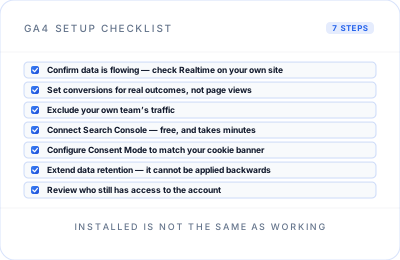
Most small businesses I audit did not set GA4 up badly on purpose. They simply were never shown what “properly configured” looks like. GA4 gets installed, the dashboard starts showing numbers, and everyone reasonably assumes the job is done.
It usually is not. Here is the practical checklist I wish every business had before it started relying on its analytics to make decisions.
1. Confirm data is actually flowing correctly
Before anything else, open GA4’s Realtime report and browse your own site in a separate window or device. You should see your activity appear shortly afterwards. If you do not, the base tracking may not be working and nothing else on this list will be reliable until that is fixed.
Also check more than the homepage. Visit a few important pages, submit a test form where it is safe to do so, and confirm the expected events appear. Realtime is a useful first check; DebugView and Google Tag Manager Preview are better tools for diagnosing why a particular event is not arriving.
2. Set up key events that reflect real business outcomes
Out of the box, GA4 can track basic behaviour such as page views and some enhanced-measurement interactions. It does not automatically know that a form submission, phone-number click, booked consultation or completed checkout is the action that matters commercially to your business.
Those actions need to be tracked as events and then marked as key events in GA4. If you use Google Ads, the actions you want to optimise advertising around may also need to be shared or imported as conversions there. Otherwise, you are measuring traffic rather than outcomes.
Keep this focused. Track the actions that signal real intent or value, not every button somebody might click. A short, well-defined set of key events is much more useful than a long list of noise.
3. Exclude your own traffic carefully
If you or your team visit the website regularly, internal traffic can skew a small data set and make conversion rates less trustworthy. GA4 lets you define internal traffic using IP addresses or address ranges, then create an internal-traffic data filter.
Do not activate an exclusion blindly. Test it first. Once an active GA4 data filter excludes incoming data, that data is not processed and cannot be recovered in Analytics. Remote teams and changing home IP addresses can also make internal-traffic rules more complicated than they first appear.
The goal is clean reporting, not a rushed configuration change. Set the rule, validate it in testing mode, then make it active once you know it is working as intended.
4. Connect Search Console
Linking Search Console to GA4 is free and straightforward, provided you have the right access to both properties. It brings Search Console data into Analytics, including organic Google Search queries and landing-page information that GA4 does not provide on its own.
Skipping this connection makes it harder to understand how your organic visibility is translating into on-site behaviour. You will still use Search Console directly for detailed search analysis, but the link gives you a more connected view of the journey from query to visit to outcome.
5. Set up Consent Mode properly
If you use a cookie-consent solution, your Google tags need to respect the choice a visitor makes. A banner on its own is not enough; the consent choice must be communicated to Google, and your GA4, advertising and third-party tags need to behave accordingly.
Done badly, this can create unreliable measurement or allow tags to behave in a way that does not match the visitor’s choice. Consent implementation is both a measurement and a compliance issue, so get appropriate privacy or legal advice for your circumstances rather than treating it as a purely technical checkbox.
Test the consent banner as a visitor would: reject, accept and amend choices, then check that the tags respond as expected. Google Tag Manager Preview can make this far easier to verify.
6. Check your data retention settings
GA4’s data-retention controls affect user-level and event-level data used in Explorations and certain detailed reports. Standard GA4 properties can generally retain this data for either two or 14 months, while standard aggregated reports are not affected in the same way.
For most small businesses, 14 months gives a more useful window for year-on-year analysis in Explorations. Review the setting early, particularly if detailed event analysis will matter to you later. Increasing the period can apply to retained data that has not already been deleted; it cannot restore data that has already expired.
The important point is to know the difference between the standard reports you see every day and the more granular data you may want when investigating performance later.
7. Review who has access
It is common to find agencies, ex-freelancers or former employees still listed in a GA4 account long after they stopped working with the business. Review the user list regularly and remove access that is no longer needed.
Give people the lowest level of access they need to do their job, and make sure more than one trusted person in the business has administrator access. That protects the account, makes ownership clear and avoids a difficult recovery process if a supplier relationship ends.
The pattern behind all of this
None of these steps is especially complicated on its own. What is difficult is knowing they matter in the first place. Most business owners reasonably assume “GA4 is installed” means “GA4 is working correctly”, and those are two very different things.
Working through these seven steps will tell you more about the health of your GA4 setup than any dashboard will. If you would rather have someone check it properly, that is straightforward to arrange.
Not sure your GA4 setup is telling the truth?
Book a short call and I will walk through your tracking, conversions, consent configuration and account access against this checklist, and tell you honestly what needs attention.